

Launch day changes how a cloud account behaves. Before it, spending stays small and predictable because a handful of developers control everything that exists. After it, the account starts to accumulate: an environment spun up for a hotfix that nobody stopped, snapshots kept “just in case”, disks detached from a server but still billing. A few months later the founder looks at the AWS bill and asks a fair question: traffic is flat, so why does the number keep going up? In our experience, the answer is rarely a mystery. It is a short list of habits, and a short list of settings that fixes them.
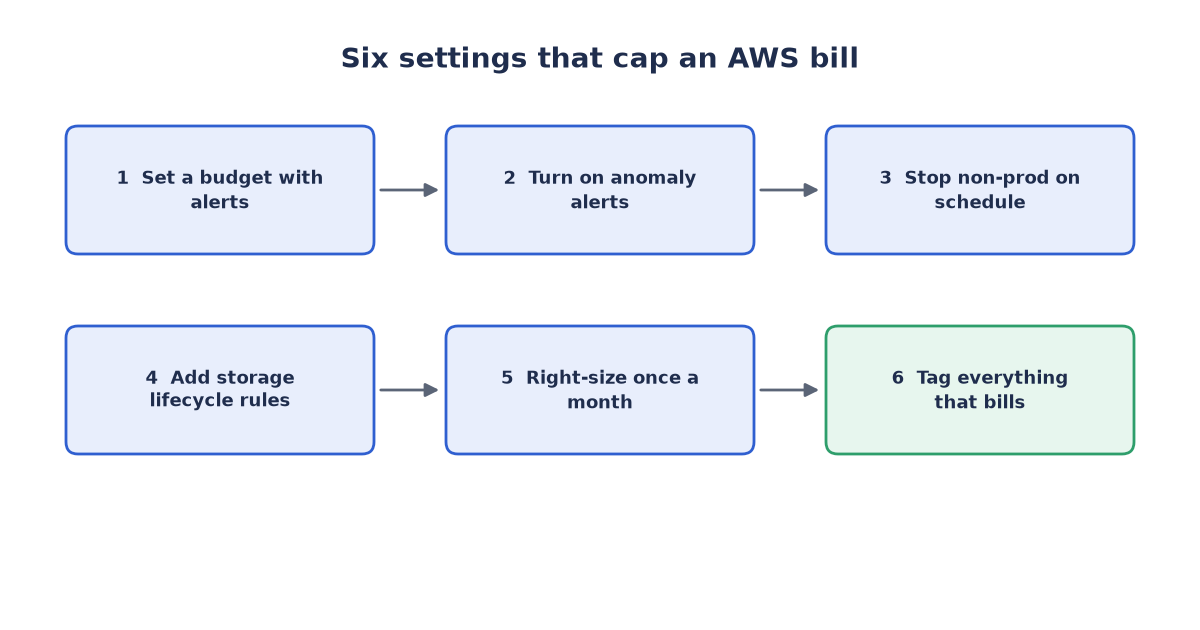
Figure 1: Six settings that keep a growing AWS bill under control
Why your AWS bill keeps growing after launch
Traditional hosting bills for one box, whether it is busy or idle. AWS bills for many small things at once: compute hours, stored gigabytes, requests, snapshots, and every byte that leaves the network. Each piece is cheap alone, and none of them goes away by itself. A resource created for a two-week project keeps billing until a person deletes it.
That is the core mechanic behind a creeping AWS bill. The platform removes nothing by default, and after launch the rate of creation goes up while the rate of cleanup stays near zero. Every sprint adds test stacks, every incident adds snapshots, every experiment leaves something running behind. Together it is the reason an AWS bill keeps climbing while usage stays flat.
The usual suspects behind a growing AWS bill
In typical small-team accounts, the same five categories explain most of the drift.
Idle development and test environments
Non-production stacks are the classic offender. A staging environment that mirrors production runs around the clock even though the team uses it a few hours a day. Feature branches get their own databases and load balancers that survive long after the merge. If nobody owns turning things off, they stay on and they bill.
Forgotten snapshots and volumes
Automated snapshots pile up unless a retention policy trims them, and a detached disk keeps billing even when no server uses it. Backups only have value if restores are tested, and the discipline of running a test restore, as we describe for content sites in testing WordPress backup restores, also surfaces snapshots and images nobody needs. The same habit applies to any workload.
Data transfer out
Bytes leaving AWS cost money, and the charge is easy to miss because it never shows up as a server or a disk. A chatty API, a public download endpoint, or traffic between regions can quietly add a line to the AWS bill that grows every month. AWS Cost Explorer breaks spending into categories, including data transfer; treat a steady rise there as a design signal, not a billing accident.
Oversized instances
Launch crunch leads to generous machine sizes: a database picked one tier too big “to be safe”, servers sized for a traffic spike that never came. Once things settle, average use is often a fraction of provisioned capacity, and the difference is waste until someone looks.
Always-on resources
Some pieces bill for existing rather than working: elastic IP addresses not attached to a running server, NAT gateways in front of environments nobody visits, single-node databases running around the clock for an internal tool used only on weekdays. Each line is small, and none ever goes away on its own.
Six settings that put a ceiling on your AWS bill
None of this requires a finance department. Six settings, most of them applied once, cap the damage and turn cost into something the whole team can see.
- A budget with alerts. In AWS Budgets, set a monthly budget and alerts at thresholds such as half and most of the amount, delivered to email or a team chat. A budget nobody receives is decoration: point the alerts at a channel the team actually reads.
- Cost anomaly alerts. AWS Cost Anomaly Detection learns what normal spending looks like and flags unusual jumps, often days before the month closes. For a small team this replaces reading the AWS bill by hand: you look only when something moves.
- Scheduled shutdown of non-production. Decide that dev and test stacks stop at night and over weekends, then enforce it with automation, such as scheduled scaling to zero or scripts that stop instances on a timer. Non-production workloads rarely need a third of the hours in a week.
- Storage lifecycle rules. S3 lifecycle rules move aging objects to cheaper storage classes and expire them on a schedule. Logs, reports, and media nobody touches after the first month should follow a written path from hot storage to archive to deletion. Apply the same thinking to snapshots with a firm retention window.
- A right-sizing review. Once a month, compare actual utilization with provisioned size. Cost Explorer shows the trend by service, and AWS Trusted Advisor runs checks that flag idle and oversized resources. Downsize the obvious candidates in a maintenance window and watch behavior for a week.
- Tagging for cost visibility. Tag every resource with at least environment, project, and owner, then activate those tags as cost allocation keys and group spending by them. The question “which project pays for this line?” should take one click. An untagged resource is an invitation to delete it.
A monthly review that takes one hour
The six settings hold the floor; a short recurring review holds the ceiling. One hour a month, one person, this checklist:
| Check | Where to look | What to do |
|---|---|---|
| Running instances | Compute console | Stop or downsize the idle ones |
| Detached volumes | Storage console | Snapshot once, then delete |
| Snapshot age | Snapshot list | Trim past the retention window |
| Data transfer | Cost Explorer | Trace any steady rise to its source |
| Top five cost lines | Billing reports | Ask why each one still exists |
| Untagged spend | Cost allocation tags | Tag the resource or retire it |
Write down what changed after each pass. A running note turns the review into a trend line, and after a few months it shows whether the AWS bill is finally behaving.
When a smaller VPS elsewhere is enough
Some workloads never needed a full cloud in the first place. A single small application with steady traffic, one database, and no need to scale automatically often runs fine on a modest virtual private server from any hosting provider, at a fraction of what a cloud account costs to keep warm. The trade is operational: on one small server you handle failover, upgrades, and capacity by hand.
A reasonable test: if one machine can serve your traffic with room to spare, and you barely use managed services, a virtual server deserves an honest look. And if you are still choosing between the major clouds before launch, our guide to AWS vs GCP vs OCI for your MVP walks through free tiers, pricing models, and data egress, where much of the difference between them lives.
A growing AWS bill is almost never bad luck. It is idle environments, orphaned storage, unchecked egress, and machines sized for launch-day nerves, all left to accumulate because nothing cleans up by default. The six settings above take an afternoon to apply and keep working long after. If you would rather have a second pair of eyes first, we offer a free 30-minute review of your setup and your AWS bill, with a short written list of what to fix first. Reach us through the project contact form or write to info (at) abcsoft (dot) digital.
Add a Comment