
Last updated: October 2026.
A backup you have never restored is only a hope. We found this out by running WordPress backup restore drills on several sites, and the drills were more useful than the backups themselves: they exposed version mismatches, disk-space traps and gaps in our own runbook before a real incident did.
This guide shows the routine we recommend: back up daily, restore to a staging server, check the result against a baseline, optimize there, and only then touch production.
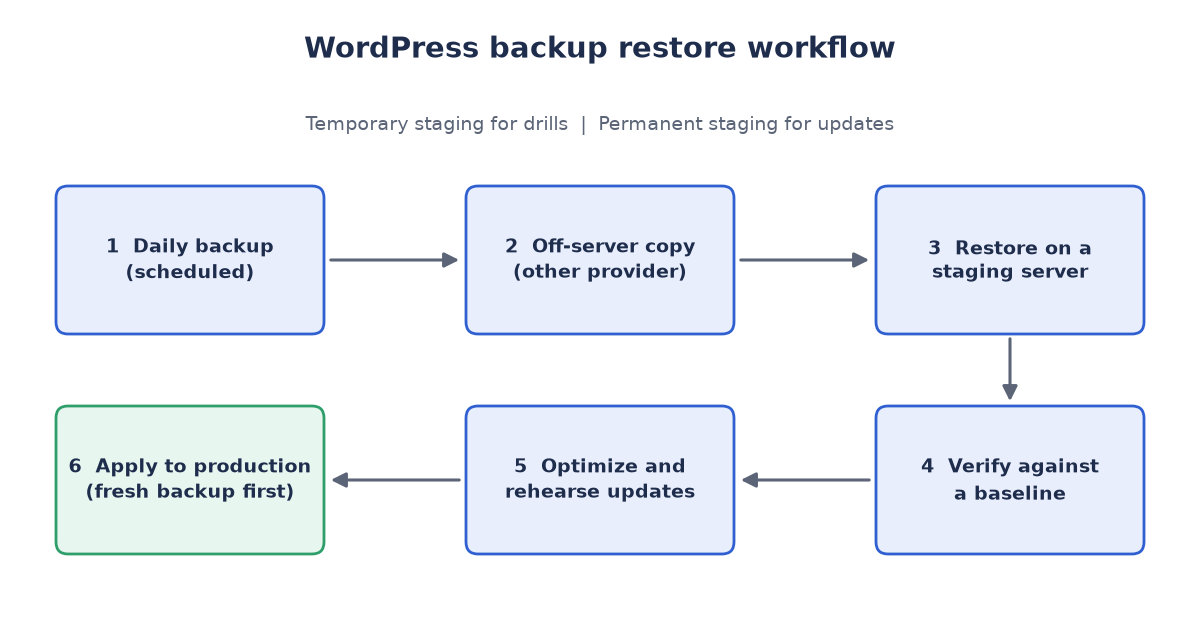
Figure 1: the WordPress backup restore workflow, from daily backup to a rehearsed production update.
1. WordPress backup restore starts with a daily backup, kept off the server
A WordPress site is two things: files (themes, plugins, uploads, configuration) and a database. A useful backup captures both, runs on a schedule and is stored somewhere other than the server it protects.
We use the free WPvivid Backup and Migration plugin for this. According to the plugin’s own feature list it supports scheduled backups (a general schedule or an incremental one), choosing what to include, sending copies to remote storage (Google Drive, Dropbox, OneDrive, Amazon S3 and S3-compatible storage, FTP, SFTP, Wasabi), restoring from a backup, and migrating a site to another address. Any comparable plugin or a server-level snapshot works too. The tool matters less than the habit:
- Schedule backups daily for active sites, weekly for quiet ones.
- Keep at least one copy off the server, ideally with a different provider.
- Keep several generations, not just the last one. A problem you notice on Monday may have started on Friday.
- Know who gets an alert when a backup fails.
2. Run every WordPress backup restore on staging first
A staging server is a disposable copy of your site where mistakes are free. There are two ways to run one, and they solve different problems.
Temporary staging is created for a drill and destroyed afterwards. It costs almost nothing, it proves you can rebuild from nothing, and it forces your runbook to be complete. This is the right choice for a monthly or quarterly restore drill.
Permanent staging stays on all the time and mirrors production. You refresh it from the latest backup, then test updates, plugin changes and performance work there before applying them to the live site. It costs a little every month, but it turns every update from a gamble into a rehearsal.
Most small teams are best served by both: a permanent staging for updates and an occasional temporary one for a true from-scratch drill.
3. Where to host staging
Prices and allowances change. The figures below were read from the providers’ official pages in October 2026. Check them again before you decide.
| Option | Good for | What to know |
|---|---|---|
| AWS Lightsail | Simple fixed-price servers with a WordPress image | The Lightsail pricing page uses a 5 USD per month bundle with 1 GB of memory in its own WordPress example. Traffic above the bundle is billed per GB (the page’s example uses 0.09 USD per GB). |
| Google Cloud (Compute Engine) | Free experiments | The free tier covers one e2-micro VM per month in selected US regions plus 30 GB-months of standard disk. It has about 1 GB of memory, so it suits small sites and short drills. |
| Oracle Cloud (OCI) | Generous free allowances | Always Free includes small AMD VMs and an Arm (Ampere A1) allowance, 200 GB of block storage and 10 TB of outbound transfer per month. Paid Arm compute was listed on the price list at 0.01 USD per OCPU-hour plus 0.0015 USD per GB-hour. |
| Your own VPS over SSH | Full control, lowest cost | You install the web server, PHP and database yourself, and use WP-CLI to manage the site. Most flexible, most work. |
| Your own VPS with a control panel (Hestia) | Self-hosting without the command line | Hestia is a free, open-source (GPL-3.0) hosting control panel that creates sites, databases and certificates from a web interface. |
Whatever you choose, match the staging server to production: same PHP major version, similar memory, similar web server.
4. The WordPress backup restore checklist
- Create a clean staging server with a matching PHP version.
- Check free disk space first. A restore needs room for the backup archive and the extracted files at the same time, so plan for at least two to three times the backup size.
- Install WordPress on staging at the same version as the site in the backup (see lesson one below).
- Upload the backup and run the restore.
- Verify against a baseline: can you log in, do posts, pages, media and user counts match production, do permalinks and menus work, do forms deliver, do scheduled tasks run, does checkout work if you sell anything?
- Time the whole drill and write down every surprise. The notes are the real output.
- Destroy the temporary server, or lock the permanent one down (see the next section).
5. What went wrong in our own tests
These are the lessons that cost us time. None is exotic, which is the point.
Lesson 1: a core version mismatch breaks login mid-restore. We restored a backup from a site running an older WordPress core onto a fresh install running a much newer one. When the restore replaced the core files, the old core could not read the newer password-hash and session-token formats, and login failed halfway through. The fix is to install on staging the same WordPress version as the backup first (WP-CLI can download a specific version), restore, then update deliberately. If you are locked out, reset the admin password with WP-CLI instead of fighting the login screen.
Lesson 2: a full disk takes other things down. One drill ran on a shared server with little free space. The disk filled during extraction and other services on the machine crashed with it. Run drills on a dedicated server, check free space first and set a disk alert on any server you care about.
Lesson 3: do not chase red herrings. Old debug logs, must-use plugins and empty web-server logs looked suspicious and were not the cause. Compare against a baseline (counts, versions, a list of active plugins) so you can tell real differences from noise.
Lesson 4: not every site restores equally. Some sites restored cleanly first time, and one needed manual help. The drill is how you learn which is which, before you need it.
6. Optimize on staging, then apply to production carefully
A restored staging copy is the safest place to improve the site:
- Update core, themes and plugins one at a time and test after each.
- Remove unused plugins and themes, and clean the database (post revisions, expired transients, spam comments).
- Convert large images to modern formats and measure page speed before and after.
- Review caching, security settings and user accounts.
Protect staging itself: discourage search engines from indexing it, block outgoing email and payment gateways, and restrict access with a password.
When you apply changes to production: take a fresh backup first, pick a quiet window, apply the same steps you rehearsed, verify against the same baseline and keep a written rollback plan.
7. A simple schedule
- Daily: automatic backups, off-server copy, failure alerts.
- Monthly: a temporary-staging restore drill on one site, rotating through your sites.
- Before every major update: refresh permanent staging from the latest backup and rehearse the update there.
Not sure your backups would actually restore?
A backup you have never restored is only a hope. Book a free 30-minute Restore Readiness Check through our contact page and we’ll review your backup and staging setup and plan a first restore drill. You can also email us at info (at) abcsoft (dot) digital.
Add a Comment